Set up the Windows agent service
Run the zrok agent as a Windows service so it starts automatically with your system. Service management is handled through nssm (Non-Sucking Service Manager), a third-party utility. Review the nssm documentation before proceeding.
Prerequisites
-
A zrok account token.
-
zrok2.exeandnssm.exeinstalled in a protected location. This guide usesC:\Program Files\zrok2\. -
A Command Prompt open in
C:\Program Files\zrok2\:cd "\Program Files\zrok2"
Enable the service environment
The Windows service runs as the Local System user, whose home directory is C:\Windows\System32\config\systemprofile.
You need to enable a zrok environment there.
-
Set
USERPROFILEto theLocal Systemhome directory:C:\Program Files\zrok2>set USERPROFILE=c:\Windows\System32\config\systemprofile -
Enable a zrok environment for the service:
C:\Program Files\zrok2>zrok2 enable <accountToken>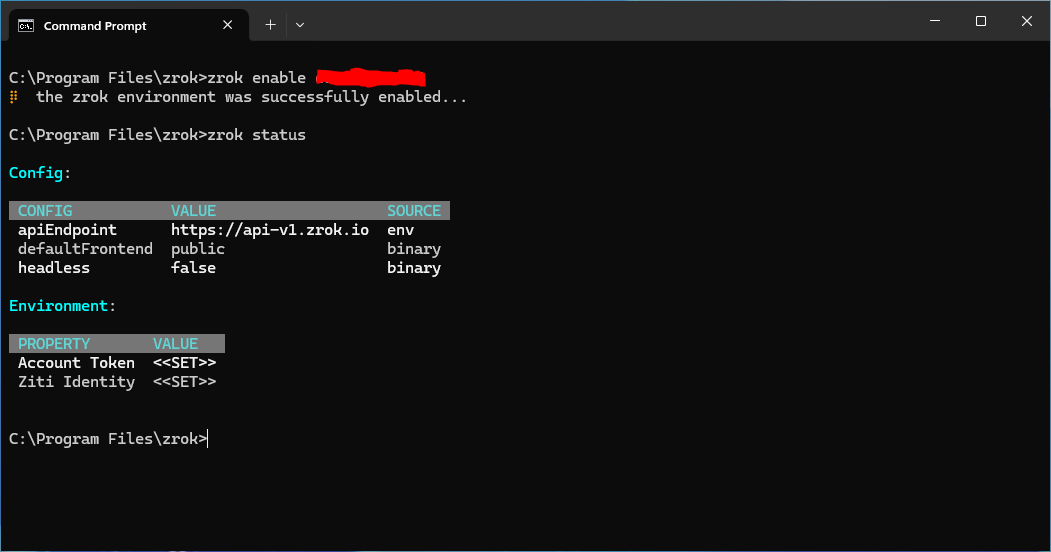
Install the service
-
Run
nssm installto open the configuration dialog:C:\Program Files\zrok2>nssm install zrokAgentWindows may prompt for elevated Administrator privileges before showing the
nssminstallation dialog.
-
On the Application tab, configure the following fields:
- Path:
C:\Program Files\zrok2\zrok2.exe - Startup directory:
C:\Windows\System32\config\systemprofile - Arguments:
agent start - Service name:
zrokAgent
- Path:
-
Click the I/O tab and configure log output:

- Output (stdout):
C:\Windows\System32\config\systemprofile\.zrok2\agent-stdout.log - Error (stderr):
C:\Windows\System32\config\systemprofile\.zrok2\agent-stderr.log
Setting up I/O redirection produces logs from the
zrok2 agent startprocess that are useful for troubleshooting. Optionally, configure log rotation on the File rotation tab if your setup requires it:
- Output (stdout):
-
Click Install service.
-
Open the Windows Services utility. You should see the new
zrokAgentservice: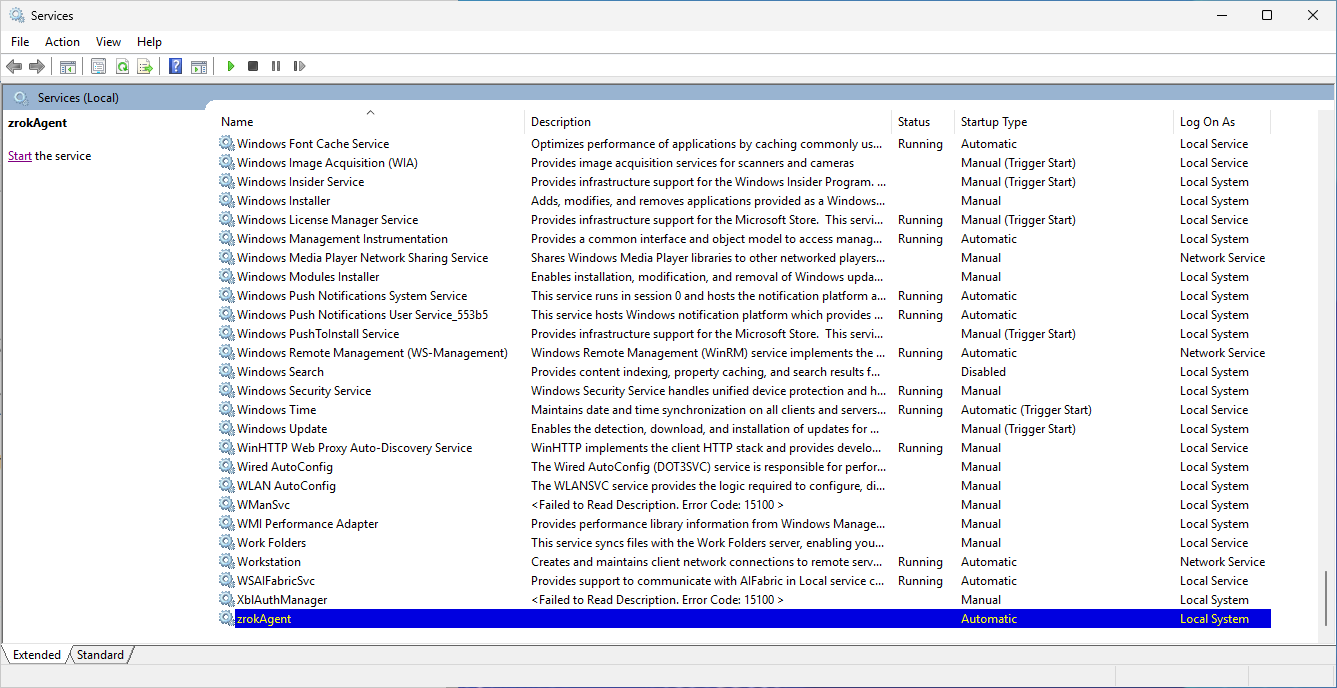
-
Start the service by clicking the start button in the toolbar, or right-clicking the service and selecting Start:
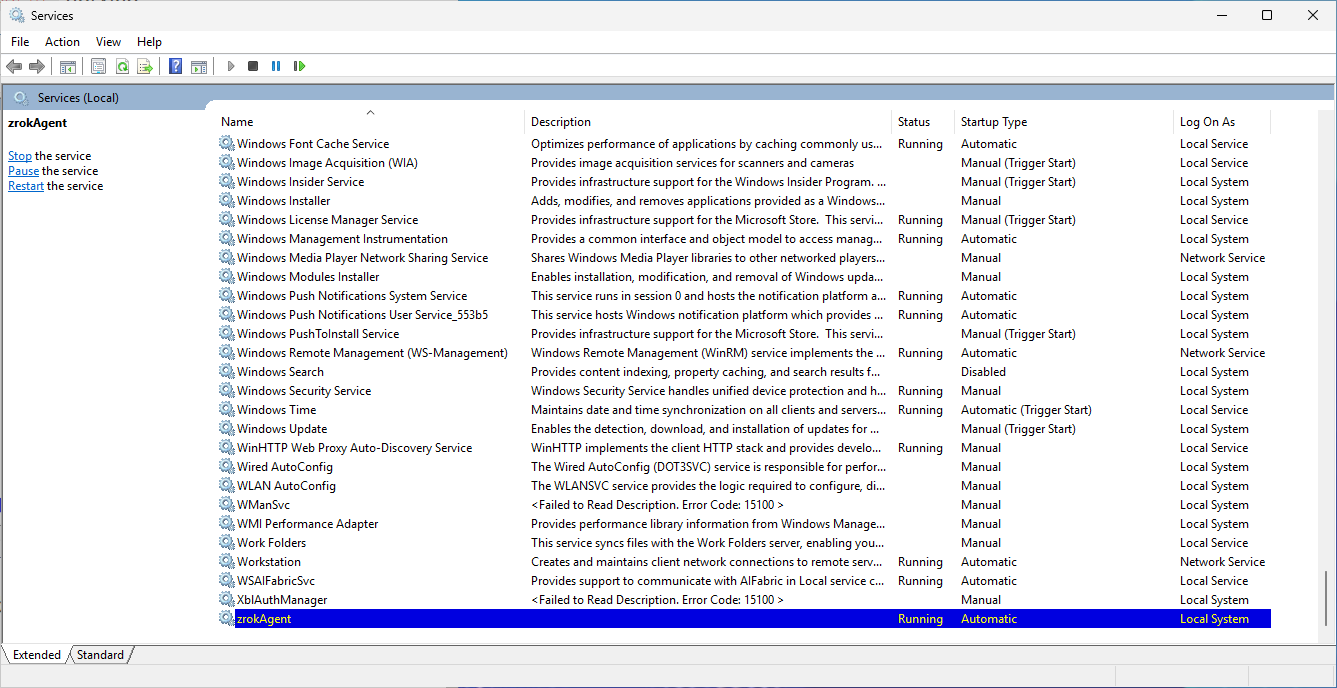
-
Verify the service is working by opening a Windows Explorer window at
C:\Windows\System32\config\systemprofile\.zrok2. You should see the log files and theagent.socketfile used by the zrok CLI: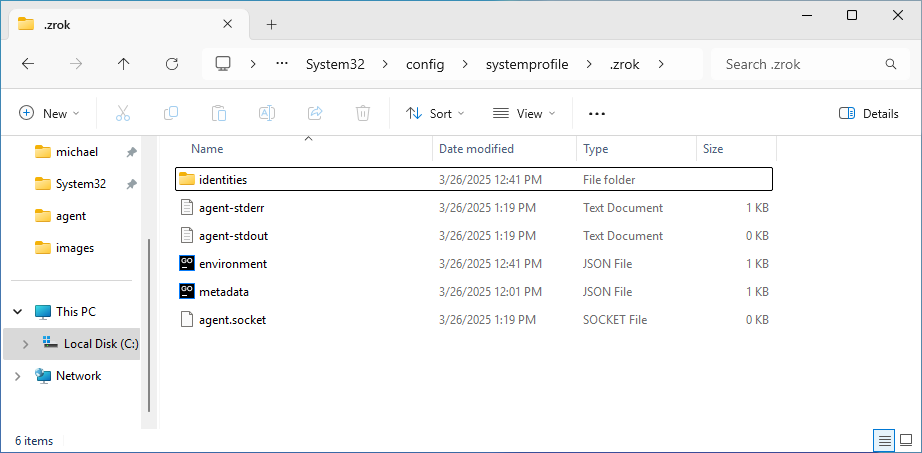
-
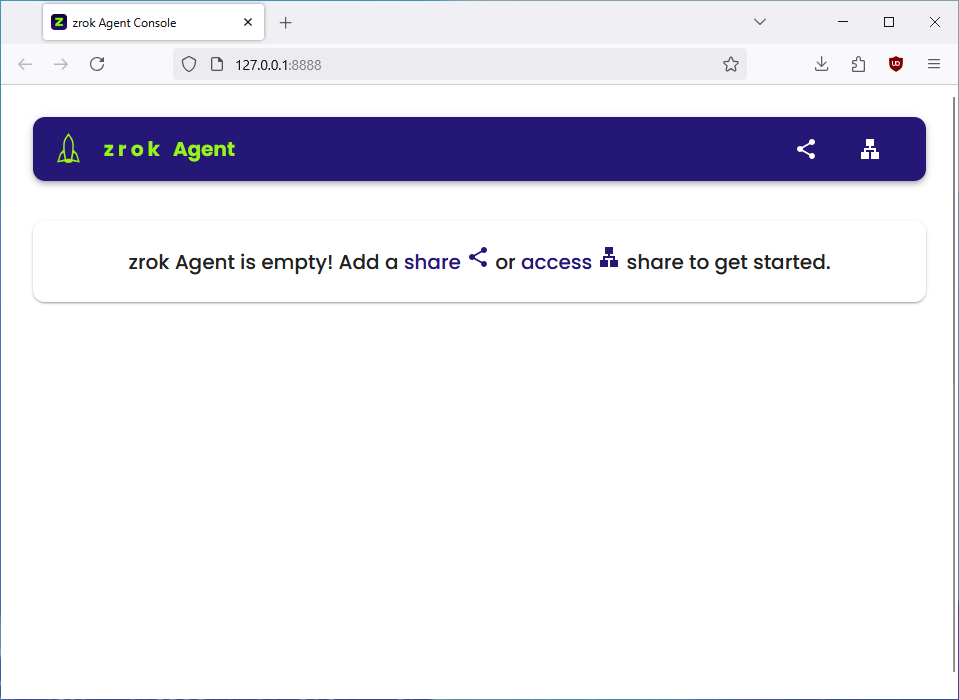
Open the agent console:
C:\Program Files\zrok2>zrok2 agent consoleThis opens a web interface for managing the agent. You can create shares and accesses from the console, or continue using the zrok CLI.
Whenever you interact with this service environment from a Command Prompt, set USERPROFILE to
C:\Windows\System32\config\systemprofile first. Otherwise, zrok commands will use your default user profile directory
instead.
Non-interactive service installation
nssm supports a command-line interface that bypasses the GUI. Run these commands from an Administrator Command Prompt:
-
Create the service:
C:\Program Files\zrok2>nssm install zrokAgent "C:\Program Files\zrok2\zrok2.exe" agent start -
Set the working directory:
C:\Program Files\zrok2>nssm set zrokAgent AppDirectory C:\Windows\System32\config\systemprofile -
Configure log output:
C:\Program Files\zrok2>nssm set zrokAgent AppStdout C:\Windows\System32\config\systemprofile\.zrok2\agent-stdout.logC:\Program Files\zrok2>nssm set zrokAgent AppStderr C:\Windows\System32\config\systemprofile\.zrok2\agent-stderr.log -
Start the service:
C:\Program Files\zrok2>sc start zrokAgent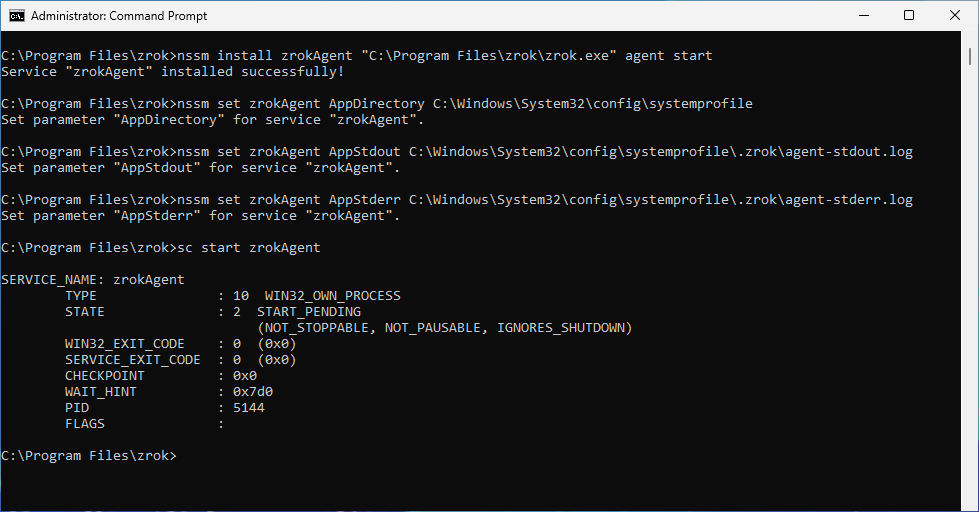
Remove the zrok agent service
Run the following commands from an Administrator Command Prompt:
-
Stop the service:
C:\>sc stop zrokAgent -
Delete the service:
C:\>sc delete zrokAgent -
With
USERPROFILEset toC:\Windows\System32\config\systemprofile, remove the zrok environment from your system and from the zrok service:C:\Program Files\zrok2>zrok2 disable